Welcome to techytweaks..

Welcome to techytweaks. Hope you enjoy.

TechZone on techytweaks.

Get updated with the Latest Tech-Tweeks with techytweaks.

Need any Support/Help?

Need help? Got a thing for us?

Follow us!

Follow us on Social Networking sites...

Now follow techytweaks via Mobile!

Enjoy the mobile version of techytweaks now! Stay updated!

ADVT

Open user profile folder and workstation using the keyboard


There are multiple options to open important directories in Windows Explorer. Most of these demand multiple mouse clicks. The same actions are faster using the keyboard.

Through a hidden feature, you can quickly open the profile folder of the current user account. Click on ‘Run’ in the start menu, type in a point ‘.’ and press [Enter]. In Windows XP, the folder ‘C:\ Document and Settings\[User Name]’ opens up; Vista onwards the folder ‘C:\Users\[User Name]’. By typing in two points ‘..’ you can also open all the sub folders of all user profiles. 

By entering Backslash ‘\’ you can reach the root folder ‘C:’. Similarly, by entering three or more points ‘...’ the work place. Windows starts the Explorer automatically. This method also functions under Vista and Windows 7, however not directly in the search field of the start menu. In both the operating systems, first open the Run dialogue box, which is done fastest with key combination [Win] + R. Only the quick call to the workplace does not work.


SONY ERICSSON XPERIA X8


The Sony Ericsson Xperia X8 is a compact phone, but not as compact as the X10 Mini. The display is a 3-inch capacitive touchscreen (320x480). The USB and headphone jack are now placed on top, alongside the power button, which works well. A microSD hot swap slot is just under the rear panel, and you have quite a few color options for the rear panel to suit your style.

 The X8 comes equipped with a Qualcomm 600 MHz processor, runs on Android 1.6, and uses Sony Ericsson’s Four Corner UI with Timescape for social networking. The UI is noticeably smoother than the X10 Mini/Mini Pro. Sony Ericsson has always complied with the norms for portable audio, but the normalization on this device makes the music almost inaudible in public. The display, although small, is comfortable enough to watch YouTube clips or 3GP or MPEG4 videos. The FM radio also has slight improvements over the previous releases. The phone comes bundled with apps like Creatouch, Roller coaster, and Peggle. However, some apps like Robo Defense don’t work with the phone. Packed with 3G, Wi-Fi, Bluetooth 2.1, and EDGE/GPRS, this phone has enough options for connectivity.

Wi-Fi connectivity was a lot more stable than in the X10 Mini Pro. The X8 features a GPS module to provide location-based information, and includes the WisePilot app for turn-by-turn navigation. The X8 has just a 3-megapixel fixed-focus camera, which is just ridiculous. Thankfully, the image quality is not bad at all. The battery life was decent, lasting about a day and a half with Wi-Fi, browsing, and social networking usage. Talk time was 3 hours 30 minutes, which is average. This phone would have been a great buy at Rs 12,000, but at Rs. 15,990, it’s not really worth the price.

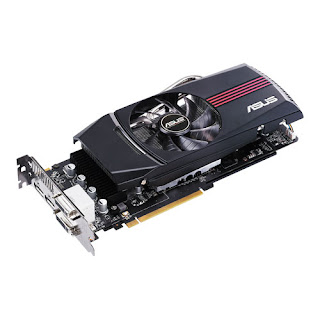
ASUS EAH6870, 1 GB


Going by AMD’s nomenclature, 6870 should be the most powerful single GPU followed by the 6850. But surprisingly, this is a mid-range GPU, which falls behind the 5870. The 6870 has 1120 stream processors (30 percent less than HD 5870) and runs at 900 MHz. The GDDR5 memory tied to a 256-bit wbus runs at 1.05 GHz, (150 Hz slower than HD 5870).

 Other changes in the HD 6000 include an improved tessellation engine that performs signifi cantly better at lower tessellation factors, better anti-aliasing, UVD 3, HDMI 1.4a and DisplayPort 1.2. UVD 3 supports hardware acceleration for Blu-ray 3D, MPEG-2, and DivX and XviD codecs. The EAH6870 uses AMD’s reference design, which is similar to that of the HD 5870 with an intake fan that cools the heatsink with copper pipes running through. The cooler is enclosed in a plastic shroud that creates a chamber for the air to move through the fins and expel from the rear, and a few vents on the side. The rear panel sports two DVI ports, two mini DisplayPorts and an HDMI port. The HD 6870 was just about able to handle Crysis Warhead at 1920x1080 using Enthusiast settings, but with AA disabled. Just Cause 2 was relatively easy to handle with Very High settings and AA set to 8x.

 So you can rest assured that most of the latest games will run comfortably at full HD resolution with all the settings maxed out, but with AA disabled or set to lower values. The overall performance is good. It’s slightly more powerful than the GTX 470, but it takes a beating from the HD 5870, which is 12 percent faster. Our system power consumption went down by 12 percent when using HD 6870 instead of the HD 5870, but the idle power consumption dropped by a mere 2 Watt. Priced at Rs 17,500, the Asus EAH6870 off ers good value for money. Competing GPUs by Nvidia also deliver similar performance at the same price point, but the power consumption is slightly higher.

DELL ALIENWARE AURORA ALX


The Alienware Aurora ALX looks almost identical to the previous Aurora gaming rig we tested, with the addition of motorized vents on top of the tower. The entire cabinet uses black plastic, except for the LED-lit translucent acrylic strips the sides. Calling this machine feature-rich would be an understatement. Built around an Intel X58 chispet, it is powered by an Intel Core i7 Extreme 980X processor, which has six cores, is clocked at 3.33 GHz, and has 12 MB L3 cache. It is equipped with a whopping 24 GB RAM and has two 320 GB hard drives; rather meager for such a powerful machine.

There are two ATI Radeon HD 5870 graphics cards in CrossFire, and each has two DVI ports, an HDMI and a display port. These cards seamlessly handle the most demanding games at maxed out settings. With fire power like that, the Aurora ALX is by far the most powerful machine we’ve tested. The front panel sports memory card readers and a Blu-ray combo drive. At the back, there are seven USB ports (one is USB 3), an Ethernet jack, six audio jacks and optical out. The rig comes preloaded with Windows 7 Ultimate. Crysis Warhead delivered 40 fps in Enthusiast modewith 8X AA and everything else maxed out, which is really something. After we fi nished testing, we went into the BIOS settings and increased the multiplier for all six cores to get higher clock speeds.


With a multiplier of 32 (default 25), the PC froze, but at 31 we got the highest clock speed of about 4.14 GHz (default 33.3 GHz). After overclocking, video encoding and fi le compression were faster by three or four seconds, and game framerates improved marginally. Here’s the question though - do you really want to spend Rs 3 lakh on a PC? You can assemble a high-end gaming rig, which can play Crysis and other demanding games at maxed out settings, for less than half this price.It's extremely Expensive!

Navigate faster and comfortably using jump lists.(Win 7)


The control panel in the current window is also quite confusing. A number of functions are available only by clicking multiple levels.Set shortcuts for the often used
objects of the control panel, for which you can create a jump list. These are commands of an application that show when you right-click on the symbol of the application in the task bar.
Navigate to ‘Start | Control Panel’.
As soon as this is opened, the operating system displays the corresponding symbol in the task bar. Right-click on this to open the context menu. Apart from a few entries under ‘Recent’ and a few standard commands, the menu currently does not serve any further objectives. You can, however, extend this menu to often used functions. Click on the link of the desired function and keep the mouse key pressed, drag the cursor to the control panel symbol in the task bar. As soon as the message ‘Pin to Control Panel’ appears, release the mouse key. Windows 7 links the functions permanently to the jump list of the application. They further appear here under the heading ‘Pinned’. Repeat this process for all the required functions. To delete a pinned function, click on the small pin in the jump list that appears when you move the cursor over the entry of the function.
NOTE:To avoid opening the control panel via the start menu, click in the jump list on ‘Pin this program to the taskbar’. The control panel symbol will now be visible in the taskbar even if the application is closed.