Welcome to techytweaks..

Welcome to techytweaks. Hope you enjoy.

TechZone on techytweaks.

Get updated with the Latest Tech-Tweeks with techytweaks.

Need any Support/Help?

Need help? Got a thing for us?

Follow us!

Follow us on Social Networking sites...

Now follow techytweaks via Mobile!

Enjoy the mobile version of techytweaks now! Stay updated!

ADVT

Showing posts with label TIPS. Show all posts

Review-Mini Vacuum Air extracting cooler fan for laptops

One of the biggest problems gamers/laptop users face is overheating of their laptop,and hence affecting its performance.

Laptops with fans situated under the hood is common,and its easier to cool these kind of laptops using cooler stands.

Since my laptop was getting overheated during gameplay, I decided to get a vacuum air extracting cooler fan. The Cooler fan just got delivered yesterday, and I have been using this cooler alongside gaming and heavy usage.

It's surprise since I was able to get this cooler fan for 880INR (around 12$) and It works like magic!


SO WHAT'S IN THE BOX?
 The box has USB cable for connecting the cooler to the USB port of the laptop,Stickers for grip and supporting the laptop, It also has rubber flaps so that the device can be attached properly and hence extract maximum amount heat from the laptop.

The Cooler fan also has a small knob to adjust the vacuum speed according to your usage.


This cooler was able to drastically decrease the temperature of my system by approx 20 to 25'C. Since this is an imported product from china,The instruction pamphlet is entirely in chinese language though and it appears that there is no warranty for this product. But We'd suggest you to get it since it offers great performance for a small price.
You can buy the product from here


Use the Internet like a Pro!

Nothing new,You all must be using Internet for a long long time. But, ever wondered whether you are using the internet to its full potential, Well, there are a number of things which could change they way you will use internet. techytweaks will guide you how to enhance your internet usage. Check it out:-


Self desturcting files

Sending files over the internet is not a new thing, however did you you can send self destructive files over the internet? With firefox send, You can send a link to anyone containing the file. The link expired once the other person has downloaded the file or after 24hrs,Which ever comes first.


Find out whether you E-mail has been pwned!

Data breaches happen everyday, It may happen with anyone at anytime. This website quickly lets you know whether your E-mail has been breached or not. You must not take any risk and should secure you account right now If your account is found to be pwned!
https://haveibeenpwned.com/

Restore a tab
We’ve all closed a tab by accident. It’s annoying, especially if you’d gone down an Internet-sized rabbit hole and weren’t sure what site you were even on. In the past, you’d have to navigate to your browser’s history and reload it from there, though most browsers at least now offer a “Recently Closed Tabs” list.

Did you know there is an even faster way? Just press Ctrl + Shift + T and the tab will magically reappear. You can use the shortcut multiple times to open a succession of your closed tabs.


 Open Links in a New Tab

It can be annoying to click on a link and end up redirecting to that page and leaving the current page you were reading. Although, many sites open links in a new tab, for e.g we at TechReviewPro understand our readers need and hence we configure all links on the site to open in new tab. But many sites still don’t. To make sure you always open the link in a new tab, just press and hold Ctrl key and then click on the link. It will open the link in a new tab without any frustrations.

In Chrome, leave a bookmark name empty to only display the icon and take up less space.

Is your bookmark bar in Chrome getting a little too crowded? Right click a bookmark, select edit, delete the name field and leave it blank, save. This will leave what is known as the favicon which is usually the logo of the site. If you need more room on the bookmarks bar use folders to further organize.


Get rid of Windows 10 Updates forever

Windows Updates can be very annoying.
First, let us take a look why people may want to turn off Windows updates.
With Windows 8.1 and earlier versions, we had Windows Update giving us options to:
  1. Install updates automatically (Recommended)
  2. Download Updates but choose when to install them
  3. Check for updates but let me choose whether to download and install them
  4. Never check for updates (Not Recommended)
These options provided a way to defer updates until we had enough time to download and install them or to have them downloaded automatically and then install them at a time we wish. 


Microsoft has explained that it will provide updates in two distinct methods for its two distinct types of clients.
First are the home users who will not have the option to defer upgrades. The updates will download and install even if they are working on something, making the computer slow in some cases. The PC however would restart only if you are not doing anything or it would restart at the scheduled time, if you have etone. Where a reboot would be required, the user might have to save his or her work and then reboot before going back to the work he or she was doing. Of course, Windows 10 will let you defer restart, but that is not enough because a download in background might slow down your browsing in some cases.
The other ring of users are the enterprise users who will have the option to delay updates, so that they can hold it to the time when they are free. Microsoft said it will push updates to such users less frequently, so that they are faced with a minimum down time. These are the corporates and real-time users such as hospitals and ATMs etc.
Coming back to Home users and Professional users, there is not even the option to delay the updates. They will be downloaded as soon as they are available. Availability of Windows Updates for normal users means that the updates have already been tested by Windows Insiders. If you are a Windows Insider, running Windows 10 Home or Pro, you will be in first priority to receive updates. After few days of you testing the updates and if it doesn’t pose any problems, it will be released to the normal ring of users.
Thus, you are stuck. Windows 10 will keep on downloading updates as soon as they are available and will occupy your computer resources, when you may not want it too. Some of us will want to keep the automatic downloads to be stopped so that we can install the updates manually when free – when we are not working on something urgent. That is to say, some users would want the liberty and option to download and install updates when they want and not when Microsoft provides it.

We won't make you wait again,Now lets move on to the procedure for blocking windows update!
  • Goto :Control Panel > Administrative Tools, you can access Services
  • In the Services window, scroll down to Windows Update and turn off the process. To turn it off, right-click on the process, click on Properties and select Disabled. That will take care of Windows Updates not being installed on your machine.

Bonus: If you are already see 'Install Updates and Shutdown' on your shutdown menu, You can delete these downloaded updates by following the steps below:
  • Go to This PC and open the partition you have your Windows installed on (it’s usually C:)
  • Go to Windows folder
  • In Widows folder, ind folder named Softwaredistribution and open it
  • Open sub-folder Download and delete everything from it (you might need an administrator permission)

How to remove 'Recent Files' from Windows Explorer. (Win10)


It's been a long since i have posted some post-One new tweak or a small tip for users who would like to hide the 'Recent files' from windows explorer.
Microsoft recently released Windows 10. Alongside a lot of new major features, the OS update also includes a couple of tiny improvements. One of the latest addition that comes with Windows 10 is the Recent Files section on the File Explorer. While some may like this feature as it helps them quickly access their recent files, some may not like it because it could clutter their File Explorer. If you’re one of those folks who don’t like the Recent Files section in Windows 10, here’s how to remove it:
  • Open File Explorer
  • Go to the View section from the top bar
  • Click on Options
  • Look for the “Open File Explorer to” dropdown
  • Click on the drop-down and change “Quick Access” to “This PC” and click on OK
  • After that, close File Explorer and reopen it to see the change in action.
Thats all! You peeps are good to go! :D

Solve Win 10 error-"CRITICAL ERROR - Start Menu and CORTANA aren't working. W'll try to fix it the next time you login"


Windows 10 was doing great for me after i upgraded to Windows 10 Pro,I felt like this was the best Windows after Windows 7 (I personally hated Windows 8).
Until then,A day i got this error saying-"

CRITICAL ERROR - Start Menu and CORTANA aren't working. W'll try to fix it next time you login"-With an 'Sign Out' option.

Though the problem ceases after I Signout and log in again,I find it very annoying.
So finally,Today i have found the solution to this.
The solution is really simple,All you have to do this :
  • Run cmd as Admin.
  • Type in "sfc/scannow".
  • Wait for the process to get completed.
  • Repeat the command and the process 1-3 times.
  • Restart your PC.
You are good to go! Please share. :)

Touchpad gestures for Windows,Finally!


Ofcourse,Most of them will be probably using Windows 10 by now, But what most of them don't know is about the touchpad gestures which Microsoft have integrated in Windows 10 with the help of Intel.
We all know how Apple have utilized the touchpad beautifully to give users a great experience,Microsoft have now come up with similar gestures on their latest Operating system.But ofcourse,You need to have a 'Precision Touchpad' for these gestures to work.
Try out these gestures on the touchpad of your Windows 10 laptop:
  • Select an item: Tap on the touchpad.
  • Scroll: Place two fingers on the touchpad and slide horizontally or vertically.
  • Zoom in or out: Place two fingers on the touchpad and pinch in or stretch out.
  • Show more commands (similar to right-clicking): Tap the touchpad with two fingers, or press in the bottom-right corner.
  • See all open windows: Place three fingers on the touchpad and swipe them away from you.

Show the desktop: Place three fingers on the touchpad and swipe them towards yourself.
  • Switch between open windows: Place three fingers on the touchpad and swipe right or left.
  • Open Action Centre: Tap with 4 fingers.
  • Search: Tap with 3 fingers.

These gestures can be configured from within the Mouse and touchpad section of the Settings app. Each individual gesture above can be disabled if you like, although they’re all enabled by default.

Bypass WINRAR Password

Today,I encountered one of the most irritating moments on the internet.I had downloaded a 'zip' file and just then realised that it needs a password to be extracted-The ugly part,I had to do all the crappy surveys to get the password and It still didn't work.
So,One of the best solution available now was this. Here, The application uses brute force attack, Which tests different combination of alphabets,numericals and special characters to predict the password assigned to the file.
Probably you can’t bypass WinRAR password protected file password as you like when you just forgot or lost it. But you can bypass password and open files in archive next time.

How can we find WinRAR file password?

Password recovery tool is undoubtedly a good method. But does it can recover all of WinRAR file password? We know that WinRAR file is probably RAR or ZIP archive. If there is no such tool, how can we do?
Don’t worry. If there is really no such tool, take RAR Password Genius to find RAR file password, and use ZIP Password Genius to find ZIP file password. Because of the similarity between RAR and ZIP file password recovery, now we just need to see how to find RAR file password with RAR Password Genius.
1. Look for RAR Password Genius, then download and install it on computer.
When you download it, you can find there are two versions available, trial and full version. Trial version is free and full version needs to be paid. According to your RAR file password length, choose an appropriate version, because full version can find all kinds of RAR file password.
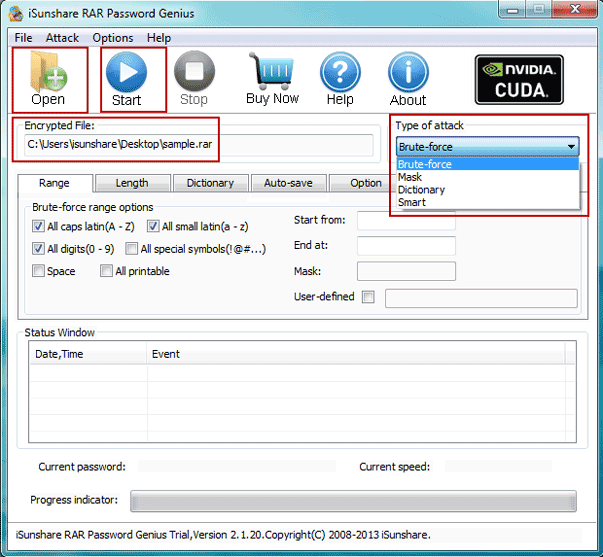
2. Import RAR file into RAR Password Genius after it is run.
With “Open” button on RAR password recovery tool, you can browse RAR file on your computer and import it into “Encrypted File” box.
find-winrar-file-password
3. Select password attack type after RAR file is imported.
From Type of attack drop-down list, you can see four powerful password attack types. Each one can recover different kinds of password with high efficiency. More about how to select password attack type and make settings, please see the articlePassword Recovery Type Settings.

4. Begin to find RAR file password with Start button.
bypass-winrar-file-password
Once you click “Start” button, RAR Password Genius will begin to find RAR file password for you. When you see password appears in pop-up window later, it’s time to remove RAR file password.

How to bypass WinRAR file password?

Open RAR file in WinRAR, and extract RAR file. When a dialog asks for a password, enter password you just found for RAR file and click OK. Then original RAR file password is removed and it is extracted. Now you can choose to compress files to RAR file again or not. No matter what you do, you have could bypass RAR file password to open or edit files compressed in RAR archive.
SOURCE : isunshare

How to setup a custom domain using godaddy with blogger

It's always better to add a custom domain to your blog and boost up the visitors,traffic etc. The technology is growing day by day and hence it is better everyone to be updated.
First of all, Adding a domain to blog isn't a complex task.If you're a true blogger, and wish the world to know about you,Do it.
Here are some popular domain hosting sites:

  • godaddy
  • Yahoo!Smallbusiness
  • No-IP
  • 1and1


We will be covering how to use a godaddy domain with blogger now(hoping to cover all of the mentioned web hosting sites within days)

Step-1
Buy a domain on godaddy.Domain name are not free but they cost around 10-12$ per year.
Step-2
Go to blogger,Select settings,Then 'Basic'
Step-3
Under publishing,Select "Setup a third party URL for your blog' and under that,type the domain name you've already registered with godaddy.
Step-4
Now,you should see something similar to this.Keep the tab opened,Open godaddy in a new tab,Login.
Step-5
After logging in,Select Domains>All Domains>Manage DNS.

Now,Select 'Add record'
Select 'CNAME' under 'Record type'.
Keep 'TTL' the same.
Enter the Other details
Add your details under 'Host' and 'Points to' from the Blogger settings (You can get it from the blogger settings tab which iv'e asked you guys to keep open.)

If you guys are still confused,Hope this helps.
Now, after filling all necessary details,Click finish.

Step-6
Now we have to create 4 more records in a similar fashion. The details to fill up while creating the records are as below 
Sl #Record TypeHostPoints toTTL
1A@216.239.32.211 Hour
2A@216.239.34.211 Hour
3A@216.239.36.211 Hour
4A@216.239.38.211 Hour
Once done, you should see only 4 records under the A Host section and those should be: 


Step-6
Now,Return to the blogger tab, And click "save' and it should do it :)

Windows 8 product keys

Since our Windows 7 activation keys was useful for many users,Here's Windows 8 keys! and more to follow :)
What Make Window 8 Special?

The new start menu feature, elegant and advance user interface makes window 8 special and unique as compared to any other operating system. Most importantly window 8 is an evolution of all previous windows released so far by the Microsoft.

 Window 8 Product Keys:

As it is a latest and premium version of windows so in order to avail the full and premium features of windows 8 you need a product key so you may enable the full version of window 8 working for you. As it has become the most popular window operating system there are hundreds of thousands of free serial keys for windows available online but most of them are not working properly.
.

Windows 8.1 2015 new keys

4NJ8T-3MRPX-HPRB6-9GKWD-Y4FXB

New Keys 2015

Windows 8 Cracked Keys(Activation/Product Keys)

HB39N-V9K6F-P436V-KWBTC-Q3R9V
6PN82-R4BBH-XX8K2-DCK84-VMFDH
QGR4N-78PMD-KCRQ7-83BXT-YG667
BTNJ7-FFMBR-FF9BH-7QMJ9-H49T7
G9XNM-YYY38-8R9HM-YFPTX-T8XT7
CR8NG-63KCR-X2MPD-G7M7P-GQ4DH
NGMMV-FVDXB-QP6XF-9FTRT-P7F9V
7TWWK-WNB2W-VRVPV-XG6RV-MBFDH
HN42W-QF3D6-2KM6W-C79XK-JW8XV
RFQ3N-4Y4XR-JY9PV-883PR-BY2KV
VC972-N7YXW-G9WQY-VBDP4-GXT67
QDCTN-G878G-WBHHQ-GW7XP-XTJXV
NBCCB-JJJDX-PKBKJ-KQX8X-WTV3H
2747P-9WNWW-MD6JF-HRC36-HFPKV
2Y8NR-PPTC4-XYX8G-4KQGC-6JCKV
38N79-8B9GY-J4JYJ-D29V3-YBFDH
3FCND-JTWFM-24VQ8-QXTMB-TXT67
GX9N8-4H2FH-D987T-BQ9GK-XKT67
P8MCC-G7NDR-D27YY-Q83CC-8W8XV
KKPMN-469HY-H6V43-T8VX2-8W8XV
T3NJK-3P683-2T7BJ-2X27F-8B2KV
HB39N-V9K6F-P436V-KWBTC-Q3R9V
6PN82-R4BBH-XX8K2-DCK84-VMFDH
QGR4N-78PMD-KCRQ7-83BXT-YG667
BTNJ7-FFMBR-FF9BH-7QMJ9-H49T7
G9XNM-YYY38-8R9HM-YFPTX-T8XT7
CR8NG-63KCR-X2MPD-G7M7P-GQ4DH
NGMMV-FVDXB-QP6XF-9FTRT-P7F9V
7TWWK-WNB2W-VRVPV-XG6RV-MBFDH
HN42W-QF3D6-2KM6W-C79XK-JW8XV
RFQ3N-4Y4XR-JY9PV-883PR-BY2KV
VC972-N7YXW-G9WQY-VBDP4-GXT67
QDCTN-G878G-WBHHQ-GW7XP-XTJXV
NBCCB-JJJDX-PKBKJ-KQX8X-WTV3H
2747P-9WNWW-MD6JF-HRC36-HFPKV
2Y8NR-PPTC4-XYX8G-4KQGC-6JCKV
38N79-8B9GY-J4JYJ-D29V3-YBFDH
3FCND-JTWFM-24VQ8-QXTMB-TXT67
GX9N8-4H2FH-D987T-BQ9GK-XKT67
P8MCC-G7NDR-D27YY-Q83CC-8W8XV
KKPMN-469HY-H6V43-T8VX2-8W8XV
T3NJK-3P683-2T7BJ-2X27F-8B2KV

SOME MORE KEYS

TK8TP-9JN6P-7X7WW-RFFTV-B7QPF
DNJXJ-7XBW8-2378T-X22TX-BKG7J
MBFBV-W3DP2-2MVKN-PJCQD-KKTF7 
6RH4V-HNTWC-JQKG8-RFR3R-36498
4Y8N3-H7MMW-C76VJ-YD3XV-MBDKV
28VNV-HF42G-K2WM9-JXRJQ-2WBQW Windows 8.1 serial key : ultimate edition

NTTX3-RV7VB-T7X7F-WQYYY-9Y92F

Windows 8 OS key : Professional edition

XKY4K-2NRWR-8F6P2-448RF-CRYQH

Windows 8 product key : Release preview

TK8TP-9JN6P-7X7WW-RFFTV-B7QPF

Windows 8 product number : Consumer preview

DNJXJ-7XBW8-2378T-X22TX-BKG7J

Windows 8 OS key : Developer’s preview

6RH4V-HNTWC-JQKG8-RFR3R-36498

Windows 8 product key : Developer’s version

Y8N3-H7MMW-C76VJ-YD3XV-MBDKV

6RH4V-HNTWC-JQKG8-RFR3R-36498

4Y8N3-H7MMW-C76VJ-YD3XV-MBDKV

MBFBV-W3DP2-2MVKN-PJCQD-KKTF7

28VNV-HF42G-K2WM9-JXRJQ-2WBQW

NF32V-Q9P3W-7DR7Y-JGWRW-JFCK8


Windows 8 serial key : English

DNJXJ-7XBW8-2378T-X22TX-BKG7J

Windows 8 software key : Chinese

DNJXJ-7XBW8-2378T-X22TX-BKG7J

Windows 8 serial number : German

DNJXJ-7XBW8-2378T-X22TX-BKG7J

Windows 8 unique serial number : French

DNJXJ-7XBW8-2378T-X22TX-BKG7J

Windows 8 product key : Japanese

DNJXJ-7XBW8-2378T-X22TX-BKG7J

Window 8 Serial Keys 100 % Working

2GVN8-TV3C2-K3YM7-MMRVM-BBFDH

967N4-R7KXM-CJKJB-BHGCW-CPKT7

84NRV-6CJR6-DBDXH-FYTBF-4X49V

RRYGR-8JNBY-V2RJ9-TJP4P-749T7

ND8P2-BD2PB-DD8HM-2926R-CRYQH

XWCHQ-CDMYC-9WN2C-BWWTV-YY2KV

BDDNV-BQ27P-9P9JJ-BQJ96-KTJXV

KNTGM-BGJCJ-BPH3X-XX8V4-K4PKV

F8X33-CNV3F-RH7MY-C73YT-XP73H

967N4-R7KXM-CJKJB-BHGCW-CPKT7

HNRGD-JP8FC-6F6CY-2XHYY-RCWXV

84NRV-6CJR6-DBDXH-FYTBF-4X49V

BDDNV-BQ27P-9P9JJ-BQJ96-KTJXV

CDQND-9X68R-RRFYH-8G28W-82KT7

DWV49-3GN3Q-4XMT7-QR9FQ-KKT67

F2M4V-KFNB7-9VVTW-MVRBQ-BG667

F8X33-CNV3F-RH7MY-C73YT-XP73H

GPTCC-XN297-PVGY7-J8FQY-JK49V

HV3TW-MMNBG-X99YX-XV8TJ-2GV3H

J6FW2-HQNPJ-HBB6H-K9VTY-2PKT7

KQWNF-XPMXP-HDK3M-GBV69-Y7RDH

MMRNH-BMB4F-87JR9-D72RY-MY2KV

N4WY8-DVW92-GM8WF-CG872-HH3G7

ND8P2-BD2PB-DD8HM-2926R-CRYQH

RRYGR-8JNBY-V2RJ9-TJP4P-749T7

VHNT7-CPRFX-7FRVJ-T8GVM-8FDG7

84NRV-6CJR6-DBDXH-FYTBF-4X49V

BDDNV-BQ27P-9P9JJ-BQJ96-KTJXV

967N4-R7KXM-CJKJB-BHGCW-CPKT7

KQWNF-XPMXP-HDK3M-GBV69-Y7RDH

F2M4V-KFNB7-9VVTW-MVRBQ-BG667

CR8NP-K37C3-MPD6Q-MBDDY-8FDG7

39DQ2-N4FYQ-GCY6F-JX8QR-TVF9V

VHNT7-CPRFX-7FRVJ-T8GVM-8FDG7

GPTCC-XN297-PVGY7-J8FQY-JK49V

HV3TW-MMNBG-X99YX-XV8TJ-2GV3H

CDQND-9X68R-RRFYH-8G28W-82KT7

7HBX7-N6WK2-PF9HY-QVD2M-JK49V

D32KW-GNPBK-CV3TW-6TB2W-K2BQH

NBWPK-K86W9-27TX3-BQ7RB-KD4DH

2NF99-CQRYR-G6PQ9-WYGJ7-8HRDH

F7BDM-KTNRW-7CYQP-V98KC-W2KT7

4JKWV-MNJCY-8MW3Q-VJYGP-DC73H

KQWNF-XPMXP-HDK3M-GBV69-Y7RDH

MMRNH-BMB4F-87JR9-D72RY-MY2KV

N4WY8-DVW92-GM8WF-CG872-HH3G7

ND8P2-BD2PB-DD8HM-2926R-CRYQH

RRYGR-8JNBY-V2RJ9-TJP4P-749T7

FFX8D-N3WMV-GM6RF-9YRCJ-82KT7

2CMGK-NMW4P-B846H-YXR6P-27F9V

D2GBF-NGBW4-QQRGG-W38YB-BBFDH

NTVHT-YF2M4-J9FJG-BJD66-YG667

GBJJV-YNF4T-R6222-KDBXF-CRYQH

4NMMK-QJH7K-F38H2-FQJ24-2J8XV

84NRV-6CJR6-DBDXH-FYTBF-4X49V

3NHJ7-3WWQK-4RFTH-8FHJY-PRYQH

988NM-XKXT9-7YFWH-H2Q3Q-C34DH

TGXN4-BPPYC-TJYMH-3WXFK-4JMQH

N9C46-MKKKR-2TTT8-FJCJP-4RDG7

Q4NBQ-3DRJD-777XK-MJHDC-749T7

2VTNH-323J4-BWP98-TX9JR-FCWXV

D7KN2-CBVPG-BC7YC-9JDVJ-YPWXV

2GVN8-TV3C2-K3YM7-MMRVM-BBFDH

4NMMK-QJH7K-F38H2-FQJ24-2J8XV

76NDP-PD4JT-6Q4JV-HCDKT-P7F9V

7HBX7-N6WK2-PF9HY-QVD2M-JK49V