Welcome to techytweaks..

Welcome to techytweaks. Hope you enjoy.

TechZone on techytweaks.

Get updated with the Latest Tech-Tweeks with techytweaks.

Need any Support/Help?

Need help? Got a thing for us?

Follow us!

Follow us on Social Networking sites...

Now follow techytweaks via Mobile!

Enjoy the mobile version of techytweaks now! Stay updated!

ADVT

Showing posts with label DATA RECOVERY. Show all posts

Bypass WINRAR Password

Today,I encountered one of the most irritating moments on the internet.I had downloaded a 'zip' file and just then realised that it needs a password to be extracted-The ugly part,I had to do all the crappy surveys to get the password and It still didn't work.
So,One of the best solution available now was this. Here, The application uses brute force attack, Which tests different combination of alphabets,numericals and special characters to predict the password assigned to the file.
Probably you can’t bypass WinRAR password protected file password as you like when you just forgot or lost it. But you can bypass password and open files in archive next time.

How can we find WinRAR file password?

Password recovery tool is undoubtedly a good method. But does it can recover all of WinRAR file password? We know that WinRAR file is probably RAR or ZIP archive. If there is no such tool, how can we do?
Don’t worry. If there is really no such tool, take RAR Password Genius to find RAR file password, and use ZIP Password Genius to find ZIP file password. Because of the similarity between RAR and ZIP file password recovery, now we just need to see how to find RAR file password with RAR Password Genius.
1. Look for RAR Password Genius, then download and install it on computer.
When you download it, you can find there are two versions available, trial and full version. Trial version is free and full version needs to be paid. According to your RAR file password length, choose an appropriate version, because full version can find all kinds of RAR file password.
2. Import RAR file into RAR Password Genius after it is run.
With “Open” button on RAR password recovery tool, you can browse RAR file on your computer and import it into “Encrypted File” box.
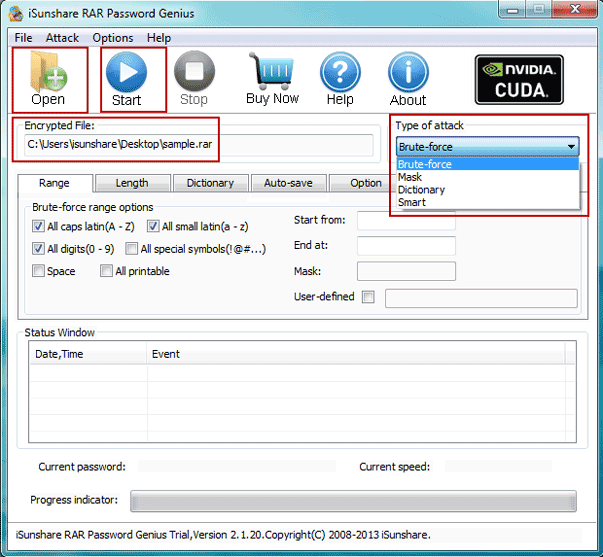
find-winrar-file-password
3. Select password attack type after RAR file is imported.
From Type of attack drop-down list, you can see four powerful password attack types. Each one can recover different kinds of password with high efficiency. More about how to select password attack type and make settings, please see the articlePassword Recovery Type Settings.

4. Begin to find RAR file password with Start button.
bypass-winrar-file-password
Once you click “Start” button, RAR Password Genius will begin to find RAR file password for you. When you see password appears in pop-up window later, it’s time to remove RAR file password.

How to bypass WinRAR file password?

Open RAR file in WinRAR, and extract RAR file. When a dialog asks for a password, enter password you just found for RAR file and click OK. Then original RAR file password is removed and it is extracted. Now you can choose to compress files to RAR file again or not. No matter what you do, you have could bypass RAR file password to open or edit files compressed in RAR archive.
SOURCE : isunshare

5 Ways to retrieve data off a Crashed Hard drive


The hard drive has the shortest life expectancy of all components, but when it inevitably fails it’s always when you least expect it. It’s an inevitability, and it always happens when you’re least prepared - the hard drive crash. Sure, you might notice it’s taking a bit longer to boot, or there’s an occasional click that just doesn’t sound right, but it’s still a surprise the day your computer fails to boot. How do you get your data off that hard drive once it’s no longer able to boot? Is it still possible? This depends on what exactly went wrong with your drive. It is safe to assume, however, that will the proper method, you will be able to retrieve at least part of your lost data.


Source: Laptop Logic

Below are five different methods for getting documents, pictures, and other important files off a crashed hard drive.

1. Use an External Case
This method is the most simple available, and for many people it is also the solution they need. Simply purchase an external hard drive case that allows you to plug your hard drive into a computer with a standard USB cable. Remove the crashed hard drive from your computer and carefully insert it into the external case (make sure you ground yourself before touching it), then plug it into a different system and try to open the drive. There’s a good chance you’ll be able to navigate into your documents and other folders and copy them onto a different hard drive.

2. Use a LiveCD
Don’t have access to a second computer for doing as you please? This method will be ideal, then. You’ll need to get temporary access to a computer with Internet and a DVD burner. Download a Linux LiveCD - Damn Small Linux is the smallest, but also has issues mounting hard drives. The most simple for an average computer userwould be Puppy Linux. It has a larger file size, but should recognize your drive.
Burn the Live CD ISO to a CD and insert it into your computer (the one with thecrashed hard drive). Restart the computer and when it the computer logo appears, press F2 (or whatever key for your system) to enter BIOS. Change the boot sequence to CD first, Save and then Exit.
The Live CD will start, simply follow the directions on the screen–don’t worry, nothing is being done to your hard drive. The OS will start, and you should see your hard drive mounted on the desktop–something like “60GB”, etc. Plug in a second drive and copy and paste the folders over.

3. Data Recovery Software
Do the above solutions have your head spinning? If you want something a little less complicated, you may want to give recovery software a go. There are a number of different free recovery tools available, and you may be one of the lucky users who have success with the programs.
There are a large number of programs available, but the quality of each varies. A good place to start would be Data Disc Recovery–it’s free, easy to use, and works on crashed drives (it can also retrieve deleted files and others). If one doesn’t work, try a different one.

4. Freeze It
This method surprises many, but it actually does work (depending on what happened to the drive). The idea is that freezing it will constrict loose parts long enough for the drive to work properly. Make sure you have a computer ready to plug the drive into and an external case. Place the hard drive into a baggy, seal it tightly, and put it in the freezer overnight. The next day, remove it from the baggy and put it in the external drive case. Transfer the data from the drive before it warms too much and crashes again.

5. Get a Pro
If all else fails, you either have to accept that the data is gone or, if the data is really important, take the hard drive to a professional. It will be expensive, but there’s a good chance a pro will be able to retrieve some of the data for you.

Symptoms of File damage

The symptoms of a missing file are pretty obvious (you won’t be able to find it), but the symptoms of file corruption can run the gamut. Some of the symptoms of file corruption include
  • A file that won’t open when you click it; the operation either puts you at an hourglass or does absolutely nothing.
  • You see the file you want to open in a folder list but when you try to open it, you’re told the system cannot find the file or it’s not a valid file.
  • A file opens with a wide range of error messages, not all of which indicate corruption.
  • A file opens to display what appears to be garbage characters as if you opened the file using the wrong program


  • As the file is opening, a low memory warning appears, or you’re told you cannot open the file because you have too little available memory.
  • Windows prompts you to tell it what program to load this file with, when the file is of a type already associated with and recognized by that program (such as .doc files in word processors).
  • Your application exits spontaneously every time you try to open a specific file or group of files.
  • Your application, previously open and working fine, displays odd behavior each time you open a particular file.
  • You have problems saving other files from an application that are open at the same time as a corrupted file.
  • Closing a suspect file seems to improve the performance of the application.